
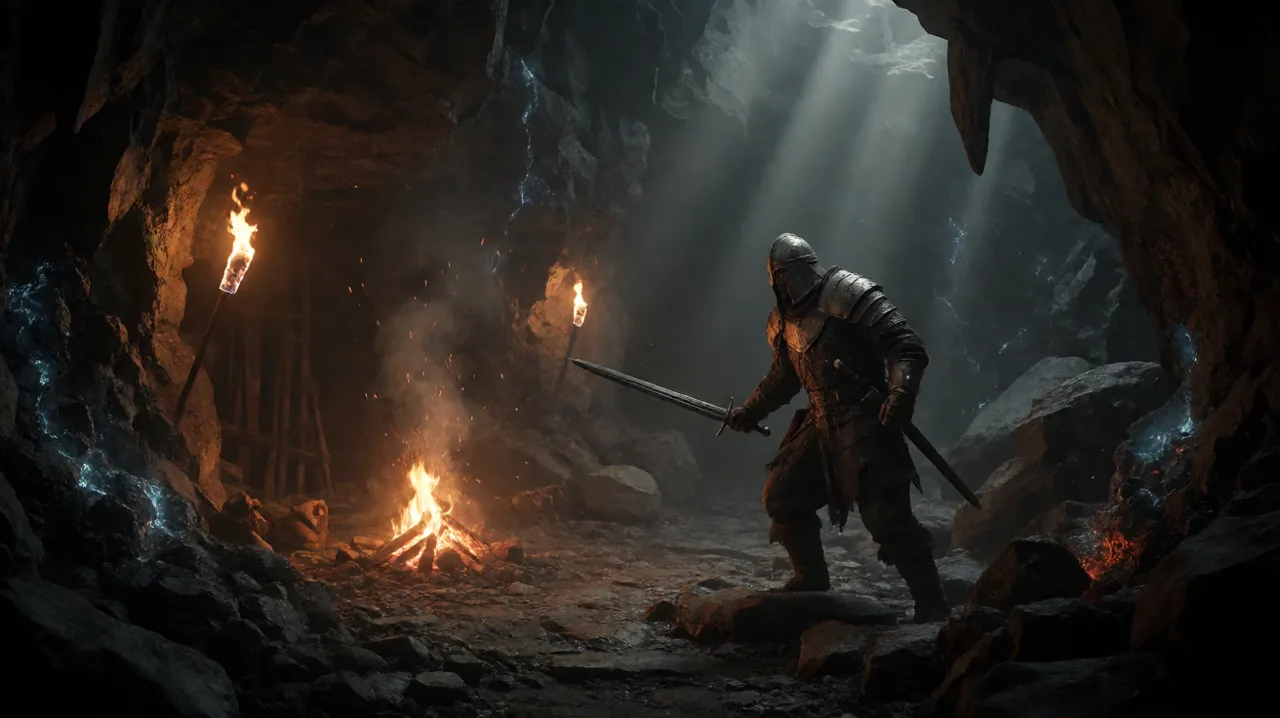
Navigating the treacherous terrain of the Valley of Mines in Alkimia Interactive’s reimagining of the 2001 classic is already a daunting task. Between avoiding deadly wildlife and managing the precarious faction politics of the Old Camp, New Camp, and Swamp Camp, the last thing you want to fight is your own hardware. However, a significant portion of the PC player base is currently reporting severe technical roadblocks when entering the Old Mine. Frequent crashes, sudden desktop drops, and complete GPU hangs are halting progression, heavily affecting users with modern graphics cards.
The Old Mine is not an optional side area. It is the beating heart of the ore economy and an unavoidable main story destination for the Nameless Hero, regardless of which of the three camps you have pledged your allegiance to. You must descend into its depths, but for many, the journey currently ends in a frozen screen. This issue is heavily tied to how Unreal Engine 5 manages its rendering technologies in complex, enclosed spaces. Fortunately, the community has identified a functional workaround.
The Root of the Problem: Unreal Engine 5’s Lumen and Nanite
The Old Mine is an incredibly complex rendering environment. Unreal Engine 5 utilizes Lumen for fully dynamic global illumination and reflections, while Nanite handles virtualized micro-geometry for terrain and structures. In open-world sections of the colony, these systems work harmoniously to deliver stunning visuals. But deep underground, the dense mesh configurations, overlapping dynamic shadow casters from torches, glowing magical blue ore veins, and concentrated particle effects seem to create a fatal bottleneck in the rendering pipeline.
Players utilizing the newly released RTX 5070 and similar high-end GPUs are inexplicably running into constant GPU hangs—often crashing every one to five minutes. This issue is highly localized to the Old Mine and differs entirely from the general stuttering or frame generation artifacts previously cataloged in performance discussions regarding RTX 5090 DLSS drops. The working theory among community members is that the rapid shifts in lighting conditions combined with the claustrophobic geometry overload the ray tracing BVH structures, causing the graphics driver to time out and crash the application.
Prerequisite Checks Before Modifying Files
Before you start altering core configuration documents, it is standard practice to rule out basic PC environment issues.
- Update Graphics Drivers: Ensure your graphics drivers are fully up to date. Both NVIDIA and AMD release game-ready drivers that often contain specific profiles for Unreal Engine 5 titles.
- Verify Game Files: Verify the integrity of your game files through Steam or your respective launcher to ensure a corrupted texture or missing asset is not the actual culprit triggering the crash.
- Shader Compilation: Allow the game to complete its shader compilation process on the main menu. Bypassing this step can cause severe hitching and crashes independently of the Old Mine environment.
If you have confirmed these basics and still encounter freezing the moment you descend past the wooden scaffolding and approach the lower levels, you will need to proceed with the manual configuration edit.
Step-by-Step Guide: Applying the Community Configuration Fix
A community-discovered workaround reportedly bypasses the rendering crash completely by manually disabling the problematic UE5 features via the configuration files. This is a community-reported stable solution that allows you to clear the entire dungeon, including the lowest depths, without a single GPU hang.
Follow these steps carefully to apply the fix:
- Close the game entirely. Ensure no background processes related to Gothic 1 Remake or the Unreal Engine Crash Reporter are running in your task manager.
- Press the
Windows Key + Rto open the Windows Run dialog box. - Paste the following path exactly into the text field:
%localappdata%\G1R\Saved\Config\Windows\and hit Enter. This will open the directory where your local configuration files are stored. - Locate the file named
GameUserSettings.ini. Right-click it and select “Edit” or open it with Notepad. - Scroll down through the text until you locate the
[ScalabilityGroups]header. - Modify the following three values to
0. If they do not exist, you can add them under the header, but they should be present by default:sg.ShadowQuality=0sg.GlobalIlluminationQuality=0sg.ReflectionQuality=0
- Scroll to the very bottom of the document and add a new line:
r.Nanite=0. This completely disables the virtualized geometry system. - Save your changes and close the text editor.
- Right-click the
GameUserSettings.inifile again, select “Properties”, and check the “Read-only” box at the bottom of the General tab. Click Apply and OK. This is a critical step; it ensures the game engine does not overwrite your emergency settings upon launch.
The Visual Trade-off: What to Expect Underground
Applying this fix disables the core pillars of Unreal Engine 5’s next-generation rendering. You will notice an immediate difference in visual fidelity upon loading your save file.
Without Lumen, the Old Mine will lack realistic light bounces. Shadows will appear incredibly harsh, basic, or completely absent in certain corners, and the ambient occlusion will look decidedly flat compared to the default presentation. The disabling of Nanite means that the intricate rock formations, wooden scaffolding, and mining equipment will use lower-quality fallback meshes, potentially introducing visible polygonal edges and noticeable pop-in as you navigate the tunnels.
While this visual downgrade is stark, it is a necessary compromise to stop the constant crashing. Treat this as a temporary tactical adjustment. The primary goal here is stability over eye candy, allowing you to secure your quest objectives, gather your ore, and escape the cavern without losing your progress to desktop crashes.
Tackling the Minecrawler Queen Without Interruptions
With the crashes mitigated, you can finally focus your attention on the actual threats lurking in the dark. The primary objective within the Old Mine culminates in a confrontation with the Minecrawler Queen, an enormous, territorial beast responsible for the relentless brood infesting the colony’s depths.
Combat against the Queen requires meticulous preparation. Without the distraction of a freezing screen every few minutes, you can properly time your dodges, manage your stamina, and utilize crowd control tactics against the smaller crawlers she spawns.
Ensure you have invested sufficient learning points into your preferred combat style before heading into her lair. Bringing plenty of health potions and utilizing spells that can damage multiple targets at once will significantly increase your odds of survival. If you are struggling with the encounter itself, refer to our dedicated breakdown on finding the Minecrawler Queen.
How to Revert the Fix After Clearing the Old Mine
Once you have defeated the Queen, retrieved the necessary quest items, spoken to the relevant NPCs, and finally stepped back out into the open air of the Valley of Mines, you will want your graphics back. Running the entire game with Lumen and Nanite disabled is absolutely not recommended, as the surface world is heavily optimized for these technologies and looks incredibly dated without them.
Reverting the changes is a straightforward process:
- Navigate back to
%localappdata%\G1R\Saved\Config\Windows\. - Right-click
GameUserSettings.iniand select Properties. - Uncheck the “Read-only” box and click Apply.
- You have two options here. You can open the file and manually revert the numbers back to their previous higher values (typically 3 or 4 depending on your preset) and delete the
r.Nanite=0line. - Alternatively, the cleaner method is to simply delete the
GameUserSettings.inifile entirely. Deleting it will force the game to generate a fresh, default configuration file upon the next launch. You will simply need to readjust your resolution, control bindings, and volume preferences in the in-game menus afterward.
Looking Ahead: Waiting for Official Patches
Alkimia Interactive has been actively monitoring community feedback and deploying hotfixes, such as the recent Patch 1.0.5, which addressed various logic bugs, AI behavior, and performance hitches. However, engine-level crashes tied to specific architectural rendering in UE5 often require complex optimization passes and extensive QA testing rather than quick backend tweaks.
Until an official patch notes explicit fixes for the Old Mine Lumen hangs, this community workaround remains the most reliable method for PC players to progress their campaigns. Keep an eye on the official Steam announcements, and remember to save often—even with workarounds, the colony remains a dangerous place.